Podcast Library Structure
The Audiobookshelf server supports podcast libraries for rehosting podcasts, such as podcasts that only have episodes available for a limited time or are not longer available.
Directory Structure
Podcasts are defined as folders. Audiobookshelf only supports podcasts in a flat directory structure (meaning no season folders). Each podcast can have a single cover image, which must be placed in the same folder as the episode files. Each audio file is a separate podcast episode.
📁 Lex Fridman Podcast
  🎵 #219 – Donald Knuth.mp3
  🎵 #252 – Elon Musk.mp3
  🖼️ Cover.jpg
📁 Self-Hosted
  🎵 #69 - Get Off My Lawn.mp3
File Metadata
When scanning podcast files from the filesystem, the metadata for the podcast is read from the first audio file encountered.
| ID3 Tag | Podcast Field | PodcastEpisode Field |
|---|---|---|
| album / series | title | |
| album-artist / artist | author | |
| genre | genres (array) | |
| language | language | |
| itunes-id | itunesId | |
| podcast-type | podcastType | |
| comment / description | description | |
| subtitle | subtitle | |
| date | pubDate, publishedAt | |
| disc | season | |
| track / series-part | episode | |
| title | title | |
| episode-type | episodeType |
- The
genrearray is delimited by either/,//, or;. - The
podcastTypemust be one offull,trailer, orbonus.
Adding a podcast
There are two ways to add a podcast to your Podcast library on your server:
- Add the podcast through the UI.
- Add the episode files to your filesystem.
NOTE: By default, ABS will not allow you to add a podcast that is hosted via a local IP address.
This is a mitigation to potential server-side request forgery attacks (SSRF).
In cases where you are self-hosting a podcast, you might need to disable this filter to add it.
To do so, set the environment variable DISABLE_SSRF_REQUEST_FILTER=1 for the ABS server.
Adding through the UI
You can add podcasts in the UI using the "Add" tab (either in the web interface or the app).
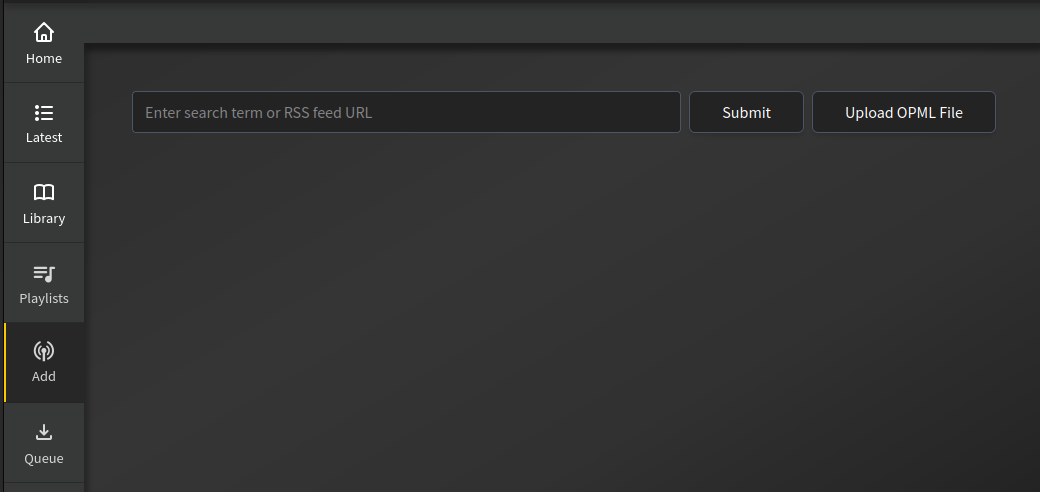
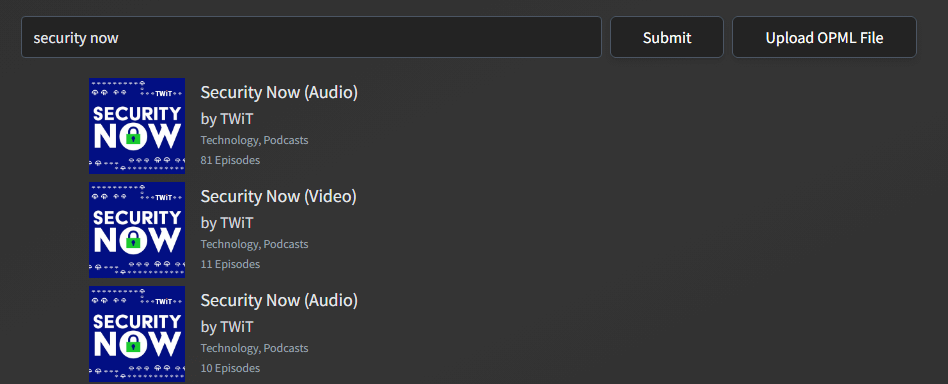
You can search by name, RSS link, or upload an OPML file. Searching by name will use the region set in the podcast settings. When entering an RSS link, the RSS feed is accessed directly without performing a search. This is just a general search field, the search terms are not stored anywhere. For example, searching "security now" returns several podcast options.
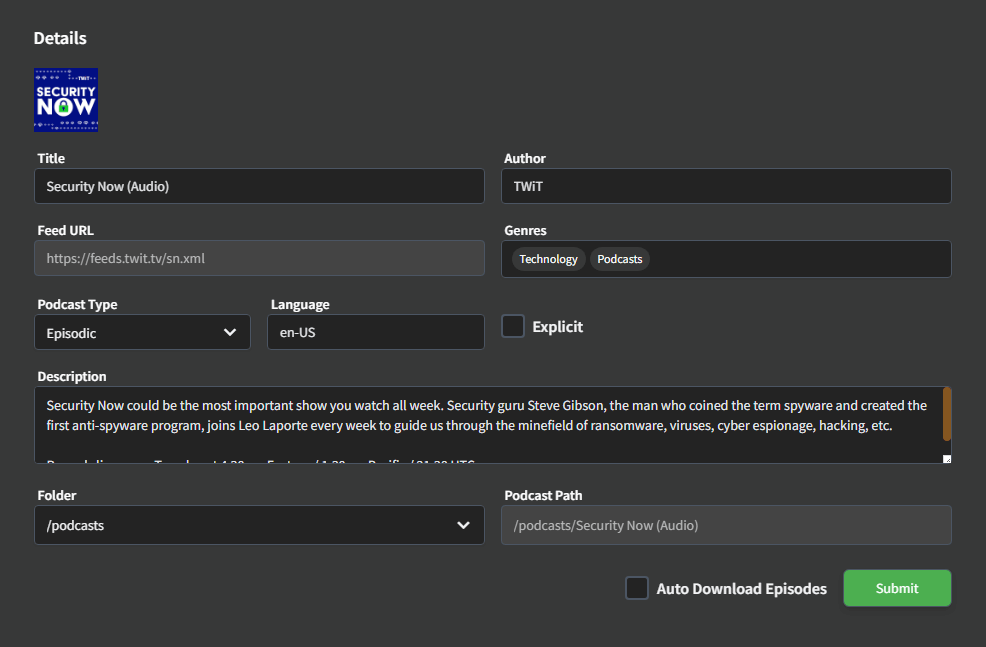
Once you have selected a podcast to add either by searching or using a direct RSS link, you can fill out metadata for the podcast.
Adding through the file system
If you already have files for your podcast, you can manually create a folder and place podcast files in the directory according to the podcast directory structure.
You can use another program or service to get the podcast files and place them in the directory instead of using the integrated ABS downloader for more control over obtaining episodes.
Downloading podcasts
Audiobookshelf will only show episode files locally downloaded to the server. Because Audiobookshelf is not designed as a pass-through service, you will not be able to see or play episodes that are not downloaded to the server.
There are several ways to download podcast episodes built in to the Audiobookshelf server:
- Manually selecting episodes to download
- Manually downloading episodes after a specific date
- Downloading episodes on a schedule
You can also use other tools or methods to download podcast episodes and place them in the supported directory structure for Audiobookshelf.
Download specific episodes
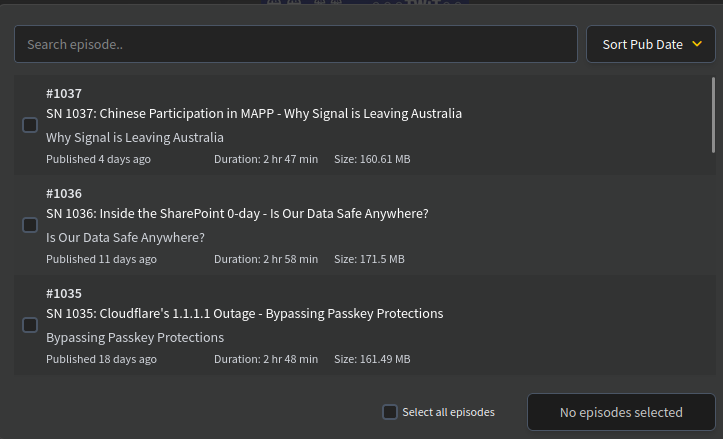
You can view all episodes in the RSS feed, both downloaded and not downloaded, using the "Find Episodes" button circled in red.
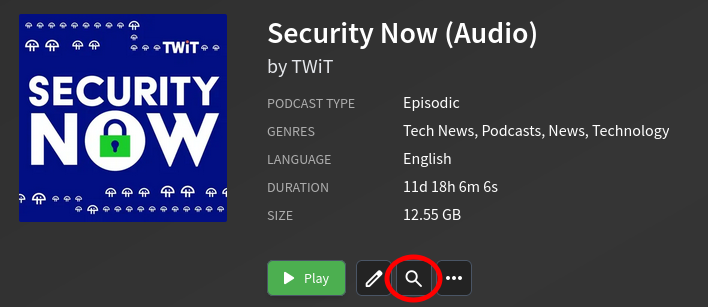
This will then allow you to select which episodes to download to your server. Episodes that are already downloaded and matched against the RSS feed will have a green checkmark to prevent downloading the same podcast episode again.
Download podcasts after a specific date
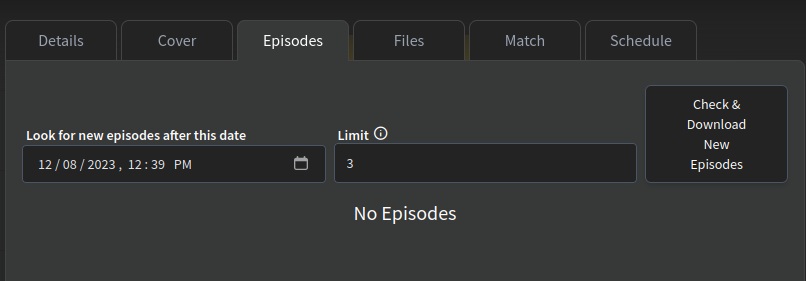
The Audiobookshelf server can also download any number of episodes released after a certain date using the "Episodes" tab of the podcast settings (use a limit of 0 to download all episodes).
You will need to change this to sometime in the past if you want to download episodes released before today.
Download on a schedule
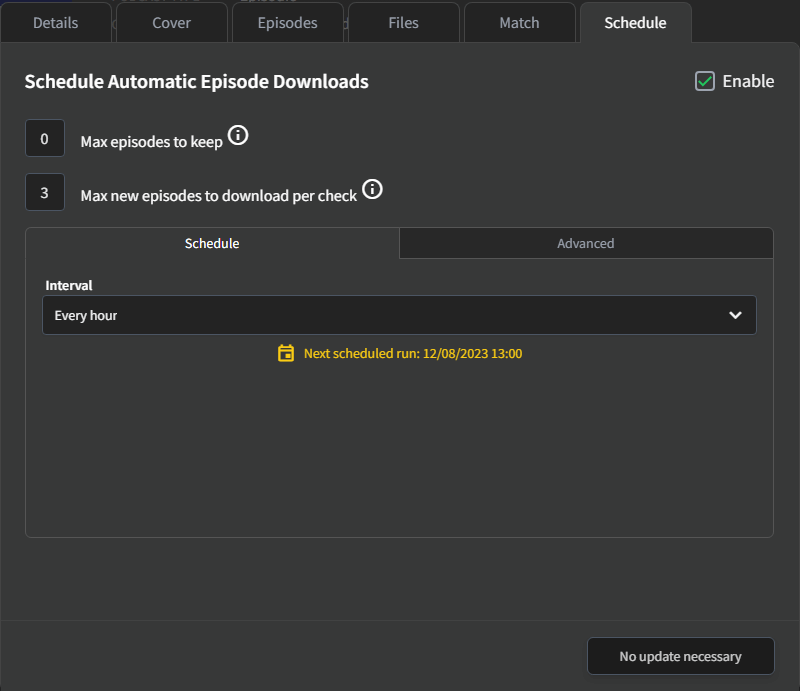
The Audiobookshelf server can automatically check for new episodes to download (disabled by default). Using the "Schedule" tab of the podcast settings, you can configure how often the server should check for new episodes and whether the oldest episodes should be deleted after downloading. Each podcast is configured individually.
By default, the Audiobookshelf server will keep all episodes. If the "Max episodes to keep" setting is changed to a positive number, the server will delete at most one local podcast episode per download check. Listen state is not taken into account when deleting the oldest podcast episode, so it will be deleted even if any user has not listened to the episode yet.
If you have 20 podcast episode files downloaded and change the setting to only keep 5 episodes, no episodes are deleted until the next "download check" occurs. If you have configured the download check to occur every hour, it will take 15 hours for the oldest 15 episodes to be deleted, with 1 file deleted every hour and leaving the 5 newest episode files. The oldest file will then be deleted when new episodes are downloaded.
If the server is unable to access the RSS feed when checking for episodes to download 24 times in a row, the download schedule for the podcast is disabled and needs to be enabled again.
Download Queue
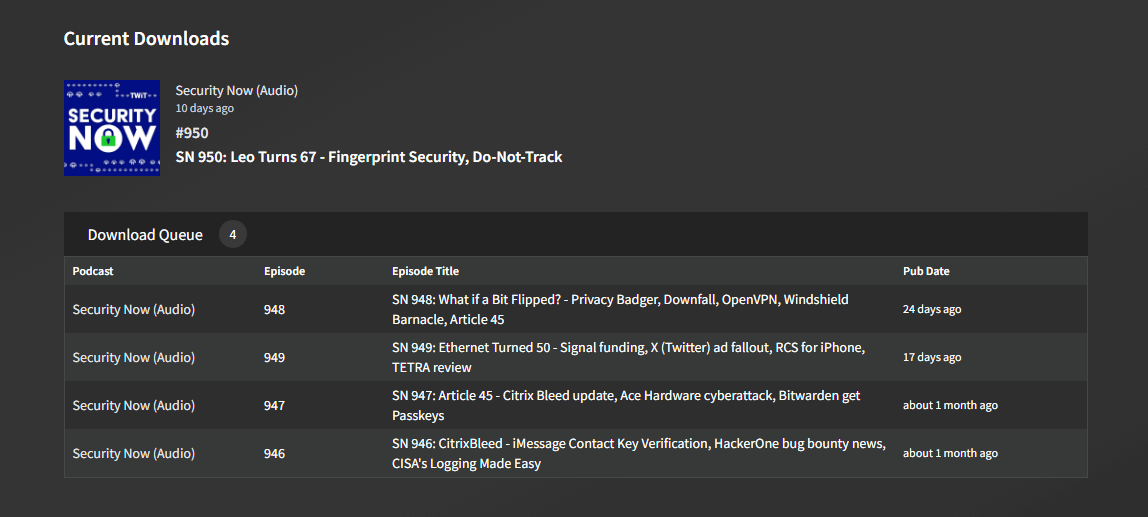
All episodes marked for download are added to the download queue. The download queue can be accessed from the navigation bar in the web client.
Tracking listen state
The Audiobookshelf server only tracks media progress for media present on the server. If you delete a podcast episode from the server, any user progress for the episode is also deleted. If you want to track what episodes have been listened to but still delete the files, you will need to track this progress using an external utility or tool.