Book Metadata
Audiobookshelf is able to use several sources for book metadata, local and online. Audiobookshelf will only use, or "scan", your local metadata automatically. Matching your books against an online metadata provider is intentionally a manual action and must be performed by the server admin or through the use of the API.
Audiobookshelf stores all metadata in a local database which is used for the API and clients. Audiobookshelf also stores the metadata in metadata.json files, by default located under /metadata/items for each library item. These sidecar files are provided for convenience for easier scripting to embed metadata back into audio files or to update the metadata Audiobookshelf uses.
Local Metadata Priority Order
Each library in Audiobookshelf can be configured to have a different metadata priority order, or "Metadata Order of Precedence". The Audiobookshelf server will attempt to fill each field in the Audiobookshelf database using the local metadata source with the lowest enabled priority, then overwrite any fields with the second lowest enabled priority, and so on. This ensures that database fields can be filled even if the highest priority field does not include that metadata.
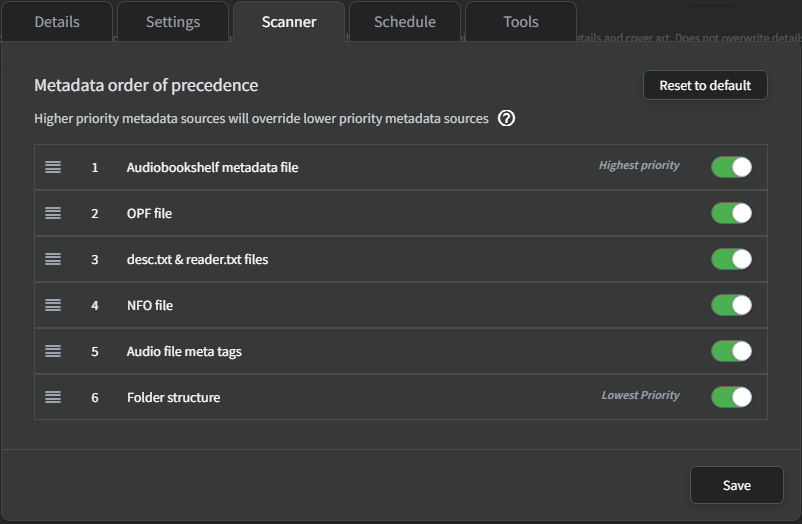
By default, all of the metadata sources are enabled by default, with the Audiobookshelf metadata file having the highest priority and the folder structure having the lowest priority. Each source is described delow in descending order of the default priority:
Audiobookshelf Metadata File
This metadata.json file mirrors the metadata stored in the Audiobookshelf database. It is updated every time the metadata for this library item updates in the database. More information can be found HERE.
This should normally remain at the highest priority for the local metadata. If this is disabled, any edits you make to metadata through Audiobookshelf will be lost the next time the library item is scanned or updated. This can be temporarily disabled or moved to be lower priority if you have updated another metadata source and want that source to overwrite what is currently in the database.
OPF File
OPF files are commonly provided for eBooks.
These files are usually created by Calibre. Because Calibre also uses a single folder per library item, Audiobookshelf can use the same directory structure for a library in both softwares. In this case, the OPF should have higher priority than the folder structure to ensure folder naming conventions do not extract the wrong information.
desc.txt and reader.txt
A description of the library item can be provided in a standalone desc.txt, and the narrator can be provided as a standalone reader.txt.
NFO File
NFO files are used by other media servers, such as Plex and Kodi.
File Metadata
The Audiobookshelf server can extract metadata from audio and eBook file metadata. For audiobooks, Audiobookshelf uses ffmpeg to extract metadata tags. The metadata from the first audio track is used after sorting the audio files by disc and track number. If no audio files are present, the eBook file metadata is used.
If your metadata does not match what you are expecting, the server provides access to view the raw ffprobe data from audio files (more information HERE).
Folder Structure
By default, the folder structure has the lowest metadata priority. For details on how the Audiobookshelf server parses the directory structure, please refer to HERE.
Online Metadata Providers
Audiobookshelf provides the ability to fetch metadata from several metadata providers. You can set the default metadata provider for the entire library or select a different provider when searching for a book in case your default metadata provider does not include the book you are searching for.
There are 2 main methods for fetching metadata from online providers, Matching and Quick-Matching. Matching allows you to select which search result to use and which metadata fields to use so you can preserve other local metadata.
Match
Manual matching allows you to select whech search result to use and select individual metadata fields to use from the online provider. You can initiate a manual match using the "Match" option in the book details page.
Quick Match
Quick-Matching automatically selects the closest result when searching using your local metadata. The closest match is determined by the result priority from your selected metadata provider and how close the duration of your local media file matches the online provider duration.
Quick-Matching is not always accurate, especially if the book you are searching for is not available in the selected provider. You can try manually matching the book to see if you can find the correct book or try another search provider.
You can Quick-Match an entire library by pressing the "Match Books" option in the dropdown on the library in the server settings, or select multiple books in the library view. When using Quick Match, you can decide whether the online provider cover image or metadata overwrites the metadata stored in the Audiobookshelf database.
Embedding Metadata
The Audiobookshelf server does not automatically modify audio files, but does provide the ability to embed metadata from the Audiobookshelf database into audio files on the Tools tab when editing a book. Not all formats or tags are supported.
The Embedding tool will show what tags will be embedded and allows selecting whether to back up the original file before emedding the file in case something goes wrong. This backup file is not automatically cleaned up and is placed in the /metadata/cache/items directory and should be cleaned up by the user periodically.
The Quick-Embed option embeds the metadata without making a backup and allows embedding metadata to audiobooks in bulk edit mode.
Audiobookshelf does not support any editing or embedding metadata for eBook files.
Checking Audio Metadata
The Audiobookshelf server and web client provides the ffprobe output of audio files to assist with debugging.
Common metadata issues include:
- Incorrect duration
- Incorrect chapter titles
Audio files not playing or seeking correctly is typically a result of a corrupted or malformed file, or unsupported codec and container on a specific device.
Inspecting an audio file
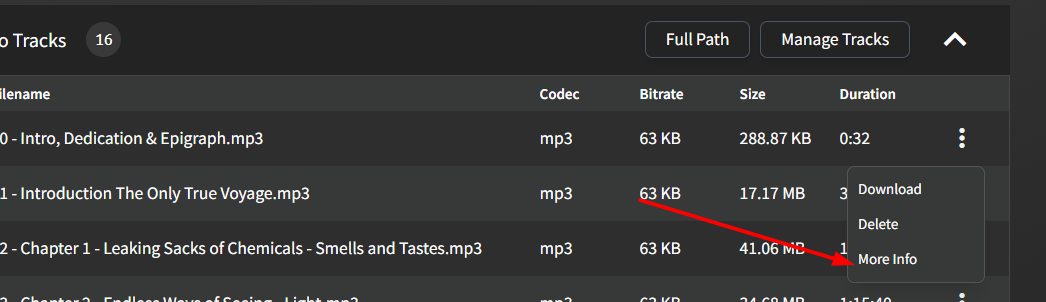
You can access the metadata for a specific file in an audiobook through the "More Info" dropdown in the "Audio Tracks" table for a library item.
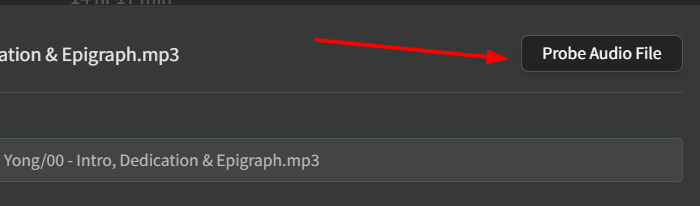
This will open a dialog with the metadata that ABS is already aware of in a formatted view. You can use the "Probe Audio File" button to get the raw output from ffprobe.
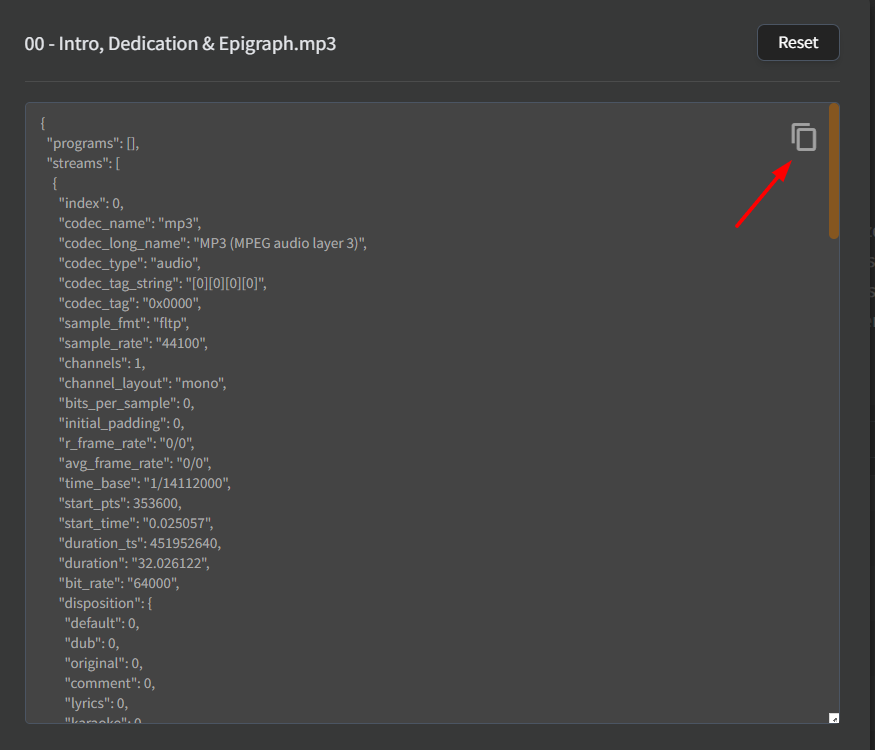
This raw data can be copied to assist during debugging efforts.
Fixing an audio file
Not all devices or programs support every audio codec. The Audiobookshelf server will attempt to transcode your files if the client device cannot direct play the codec, but this can fail if a file is corrupted.
To fix an audio file, there are 2 main options:
- Obtain a new copy of the source audio (download or rip from CD again)
- Encode the file.
If you are unable to obtain another copy of the audio file, you can use ffmpeg to try encoding the file again.
You can copy the audio data and rewrite the metadata using the -c copy argument. An example of this is ffmpeg -i input.mp3 -c copy output.mp3.
If the filename contains spaces you will need to surround the filename in quotes like this: ffmpeg -i "original file.m4b" -c copy "new file.m4b".
This will usually fix corrupt metadata or other header issues, but will not fix corrupted audio data or make the codec playable on a device which does not support the codec.
If the file is still unplayable, you can attempt to encode the file using the same codec or a new codec.
An example of this is ffmpeg -i input.mp3 output.mp3.