E-books
The Audiobookshelf server includes limited support for e-books.
The supported e-book extensions are epub, pdf, cbr, cbz, azw3, and mobi. However, azw3 and mobi formats will not track progress.
A library item can contain both e-book and audio files by keeping the files in the same folder.
A server dedicated for e-books (such as Calibre-Web) or comics (such as Kavita and Komga) will provide you with more functionality than Audiobookshelf. Audiobookshelf only provides basic reading functionality for these formats.
Primary and supplementary e-books
Each library item can have at most one Primary e-book and any number of Supplementary e-books. Reading progress is only stored for the Primary e-book.
The epub format has priority for the primary e-book format if multiple e-book files are found during the scanning process.
The primary e-book is indicated by a green checkmark in the file list. The blue "Read" button next to the play button will resume the primary e-book from where progress was last stored (progress is tracked separately for audiobooks and e-books). Pressing the "Read" icon in the file table shown at the bottom of the following image will open the e-book file at the beginning.
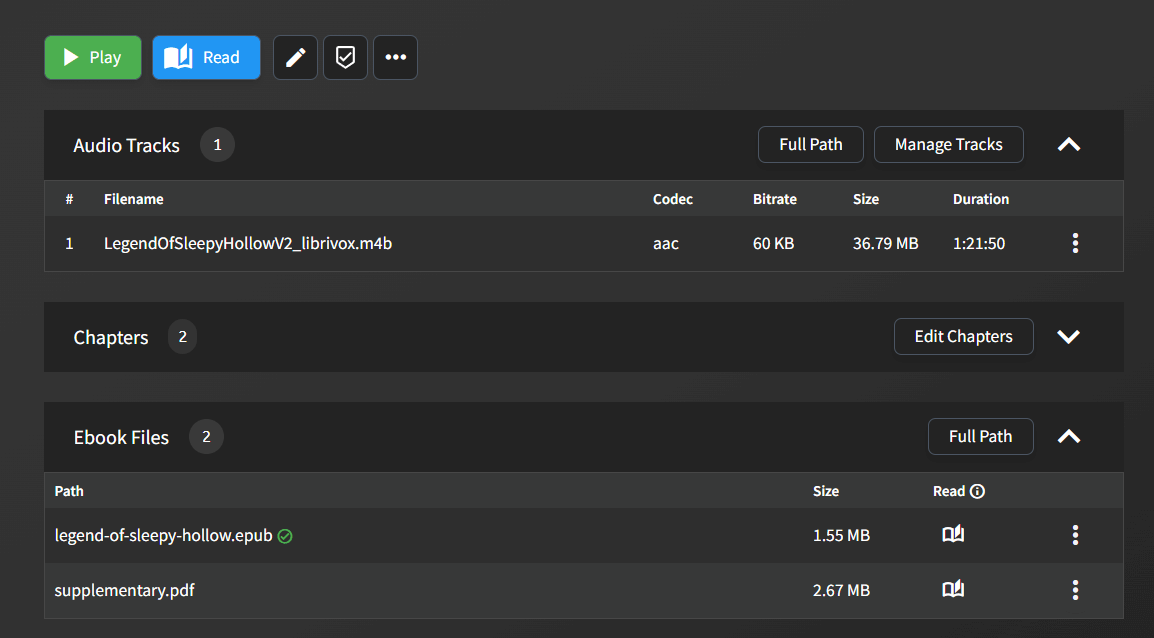
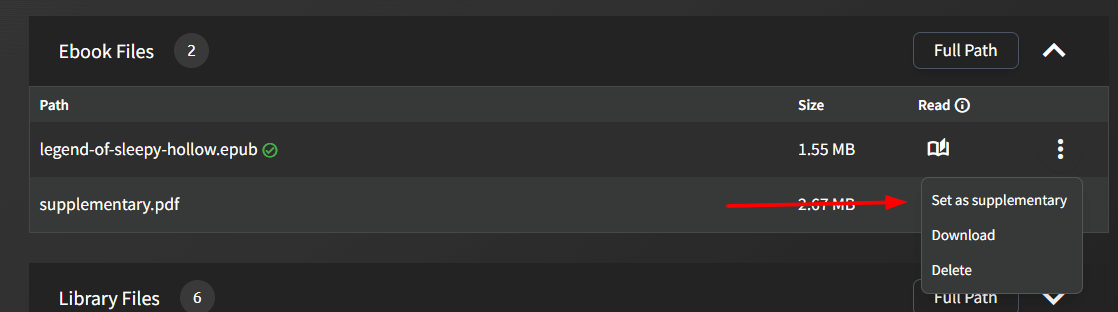
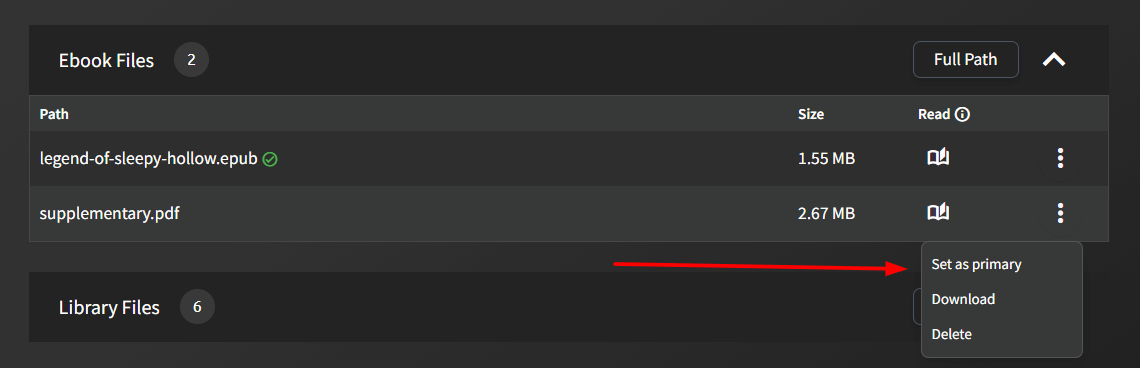
You can change whether an e-book file is supplementary or primary using the dropdown menu in the file table
Audiobook-only library setting
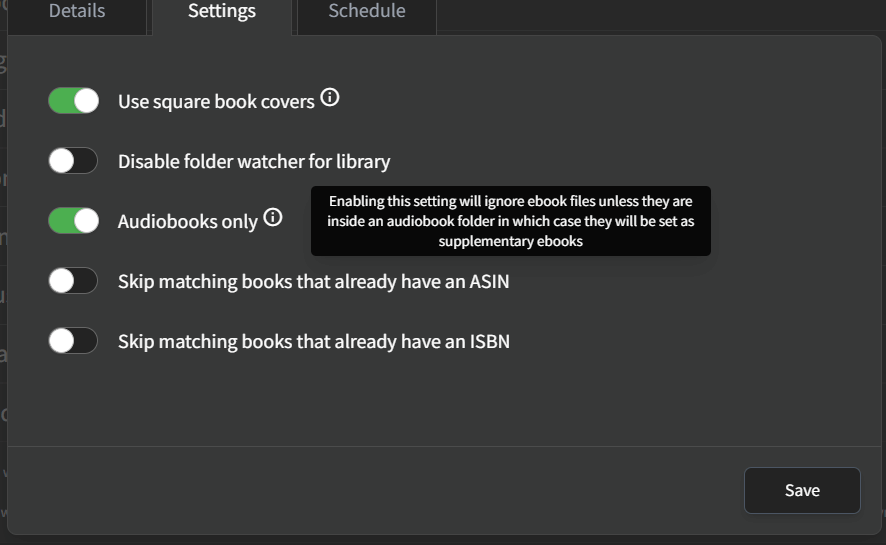
By default, the scanner will treat e-book files the same as audio files when determining whether a folder is a library item (see Library Structure), unless the "Audiobooks only" library setting is enabled.
If the "Audiobooks only" library setting is enabled, all e-book files are set as supplementary by the scanner.
Send to e-reader
The Audiobookshelf server allows sending e-books to external e-readers through e-mail.
The server administrator will first need to configure the e-mail provider the Audiobookshelf server will use to send e-mail.
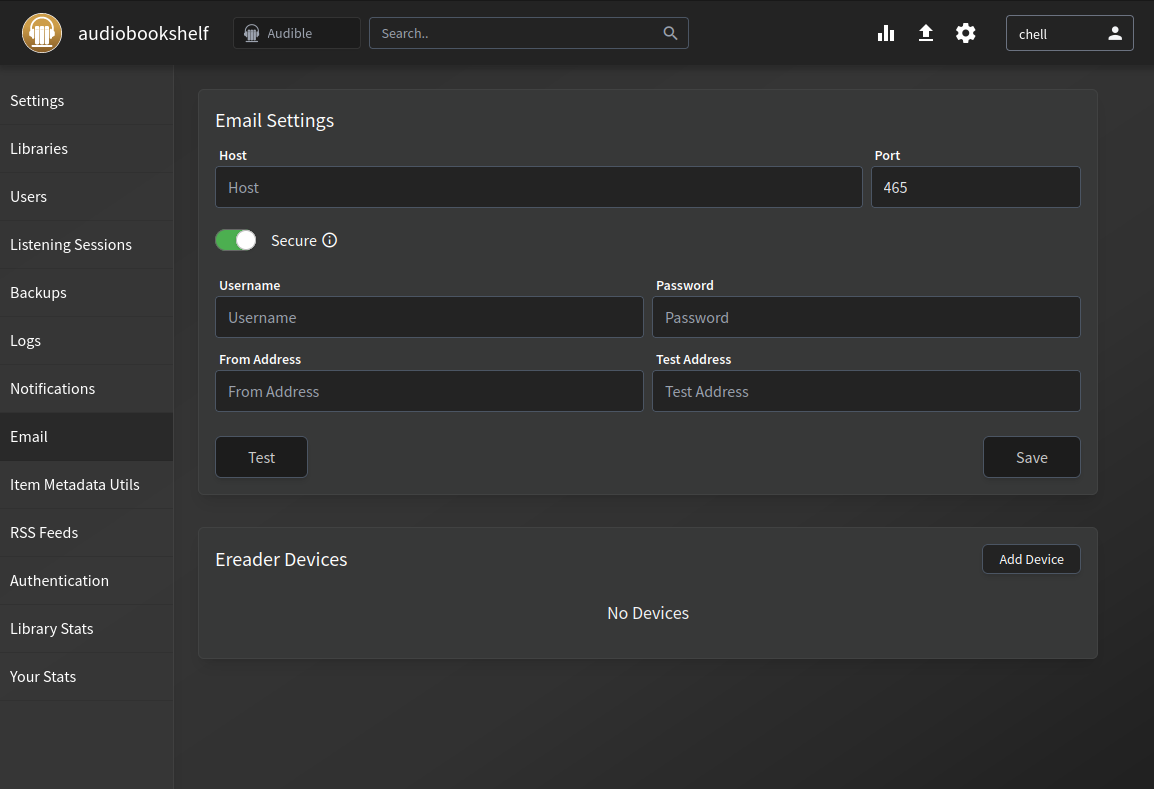
Set up the email to send from
To configure the SMTP e-mail settings, you will need the hostname, port, username, and password.
Common smtp ports are 587, 465, and 25. If you are using port 587 or 25, you will likely need to disable the "Secure" toggle.
Some online e-mail providers require you to set up an app password. For example, GMail required an app password instead of your normal password.
The From Address can be plain test@example.com or with formatted name Name <test@example.com>.
Make sure to save the settings.
Add e-reader
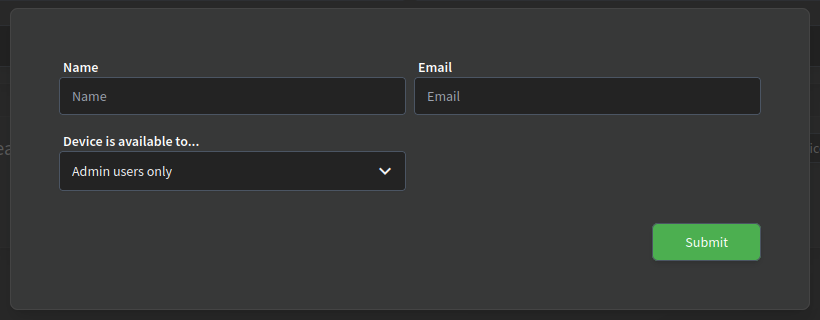
Each e-reader device has a Name and an E-mail, where the Name is how the device will be displayed in Audiobookshelf and the E-mail is the destination email address of the device. E-reader devices can be configured to be accessible by:
- Only admins
- All users excluding guests
- All users including guests
- Specific user accounts
Once the e-reader has been configured, users can send primary e-books to any e-reader they have access to.
Common issues
If sending to Kindle, you will need to make sure the e-mail ABS is using is authorized to send ebooks to your Kindle email.
Some major e-mail providers have begun sunsetting app password login (including Gmail). A dedicated SMTP Delivery service is another good option.