Backups
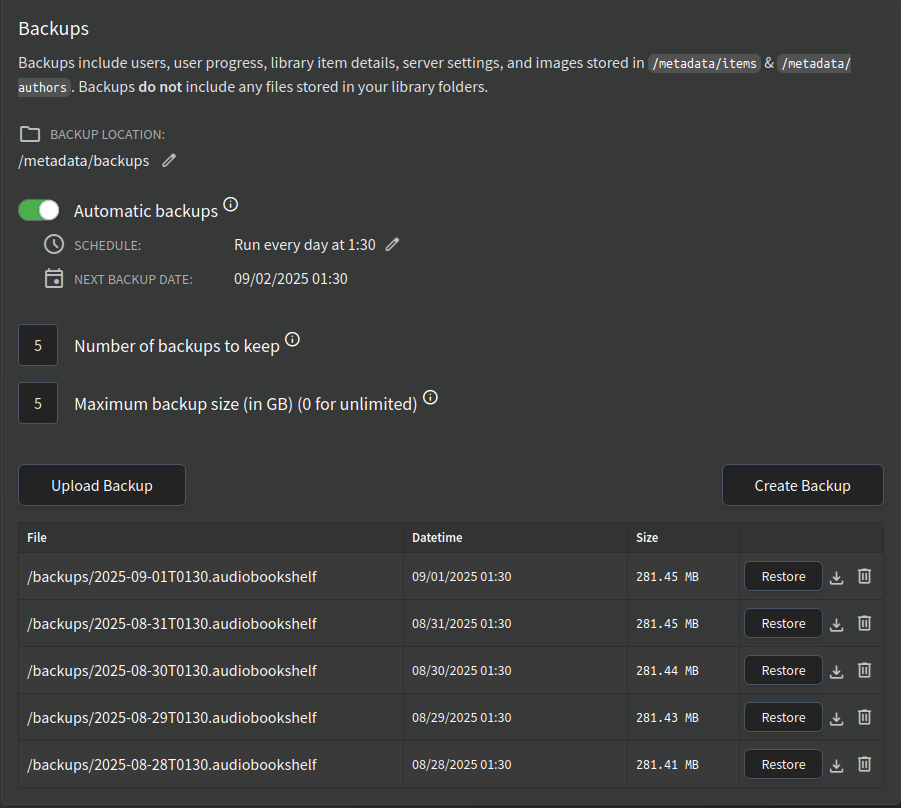
Databse backups allow restoring a previous state of the database. These backups only include the Audiobookshelf database and cover images stored in the metadata/ directory, no media files or covers stored with library items are backed up.
By default, backups are stored in /metadata/backups. You can configure this location using this interface or an environment variable. If you set the backup path using an environment variable, you will be unable to edit this path from the web interface.
You can configure how many backups to keep and a maximum size for your backups. Both fields treat 0 as "unlimited".
- Backups do not contain any media files, you must manage those backups using another method.
- Backups cannot be loaded from another installation method without losing progress and metadata. You can only restore Windows backups on Windows installs and Linux backups on Linux installs without manually modifying the database.
Restoring backups for 2.3.x and newer
You can restore a backup using the "Restore" button on the backups page, or manually through the file system using the following steps:
-
Stop the Service:
- If ABS is installed as a service:
systemctl stop audiobookshelf.service - If using Docker:
docker stop <container-name> - If on Windows: Close the application via the tray
- If ABS is installed as a service:
-
Navigate to Your Base Path:
- Note: If you have changed the metadata or config paths, navigate to those paths instead.
- Service:
cd /usr/share/audiobookshelf - Docker:
cd <path-to-your-docker-compose-file>
- Service:
- Locate and Unzip the Backup Folder:
- Note: The backup is named according to the date it was created. Use the newest backup and if that doesn't work, try the next newest.
- Service:
cd metadata/backupsandunzip <date>.audiobookshelf - Docker:
cd metadata/backupsandunzip <date>.audiobookshelf - Windows: Open the backup folder in Explorer and unzip the file using a tool like 7-Zip
- Service:
-
Replace the
audiobookshelf.sqliteFile:- Service:
cp audiobookshelf.sqlite ../../config/audiobookshelf.sqlite - Docker:
cp audiobookshelf.sqlite ../../config/audiobookshelf.sqlite - Windows: Copy the
audiobookshelf.sqlitefile to the config folder
- Service:
-
Replace the
authorsanditemsFolders:- Service:
cp -r metadata-authors ../authorsandcp -r metadata-items ../items - Docker:
cp -r metadata-authors ../authorsandcp -r metadata-items ../items - Windows: Copy the contents of
metadata-authorsandmetadata-itemsto themetadata/authorsandmetadata/itemsfolders
- Service:
-
Start the Service:
- If ABS is installed as a service:
systemctl start audiobookshelf.service - If using Docker:
docker start <container-name> - If on Windows: Start the application via the tray
- If ABS is installed as a service:
Restoring backups for 2.2.23 and older
Audiobookshelf changed the database system from a file structure to an SQLite database is server version 2.3.x (released July 2023). Backups from before 2.3.0 are not support on 2.3.x and above, so you will first need to restore the backup on server 2.2.23 and then go through the migration to SQLite.
You can restore these backups through the web interface or by extracting the backup zip manually as described in the previous section.
- Copy
/configto/configlocation - Copy
/metadata-itemsto/metadata/items - Copy
/metadata-authorsto/metadata/authors