Cross-Origin Resource Sharing (CORS)
CORS is a technology that protects web applications from malicious requests by enforcing the same-origin policy. This policy restricts web pages from making requests to a different domain than the one that served the web page. CORS allows servers to specify who can access their resources and how.
By default, Audiobookshelf only allows requests from the same origin. If you need to enable CORS for specific domains, you can do so by modifying the Allowed CORS Origins settings in the Settings page.
A valid origin is a combination of the protocol, domain, and port (if applicable). For example, https://example.com is a valid origin, while https://example.com/test is not a valid origin because it includes a path.
You also need to add both the http and https versions of your origin if you want to support both protocols.
https://example.com/ is not a valid origin because it includes a trailing slash. Make sure to specify origins without any paths or trailing slashes.
You need to add the origin of the tool you want to you. So if a tool is hosted at https://myawesometool.tld and your Audiobookshelf server is at https://myaudioshelf.tld, you need to only add https://myawesometool.tld to the Allowed CORS Origins settings.
Example

The following is only needed if you are using a local Audiobookshelf server with http://
All tools should be hosted using https:// URLs to ensure secure connections. This inherits a new problem of mixed content, where secure and non-secure content is loaded together. Browsers may block non-secure content on secure pages, leading to functionality issues. So if you want to use your local Audiobookshelf server that is reachable only via http://, you will need to disable this protection in your browser.
This protection needs to be disabled for most browsers manually. Below you will find instructions on how to do this for Chrome. For other browsers, the process may be similar, but you should consult the documentation for your specific browser (mixed-content).
- Open Chrome and go to the page of the tool you want to use.
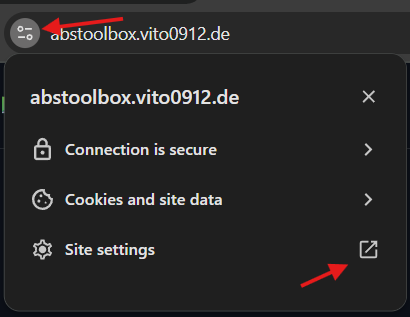
- Click on the settings icon located left of the address bar and open the site settings.
- Under the "Insecure content" section, select "Allow" to enable mixed content.
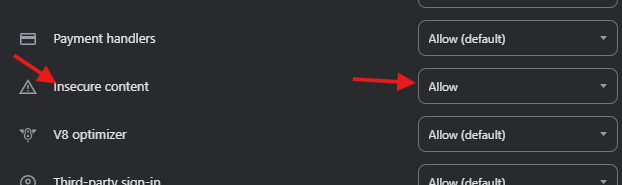
Do only enable this setting for trusted sites, as it can expose you to security risks.